


Jira and Azure DevOps are essential for teams managing agile projects and software development workflows. Connecting these platforms allows you to exchange vital information and improve collaboration between teams.
This guide walks you through a Jira Azure DevOps integration in five simple steps using Exalate, ensuring a synchronization tailored to your unique needs.
Jira and Azure DevOps: Bridge the Gap
Organizations often use Jira for agile project management and Azure DevOps for development and deployment. Jira’s flexibility in tracking work items and managing tasks complements Azure DevOps’ powerful development pipelines and repositories.
Many teams benefit from the unique strengths of each tool, but face challenges when trying to collaborate and share information across them.


Siloed tools can lead to several challenges:
- Teams struggle to share updates effectively. They lack visibility, often leading to missed information from the other tool. This results in miscommunication and discrepancies.
- Resorting to manual updates across systems wastes time, increases errors, and affects overall team productivity.
- Sometimes teams share credentials or licenses across Jira and Azure DevOps to access common information. This creates security loopholes and increases the risk of accidental information leakage.
- It becomes harder to create unified reports or track progress using manual approaches. This affects decision-making capabilities and hinders team visibility.
Setting up a Jira Azure DevOps integration ensures systems stay connected with real-time updates.
For instance, when a high-priority Jira work item is created, a corresponding work item is automatically created in Azure DevOps. Changes in one system are instantly reflected in the other based on your requirements. This helps teams collaborate without switching tools, saving time and reducing errors.
Practical Jira Azure DevOps Integration Use Cases
There are a lot of practical applications for integrating Azure DevOps with Jira. Here are a few cases where this integration shines.
Customer Support and Development Teams
Customer support teams using Jira Service Management can escalate tickets directly to Azure DevOps for development teams. For instance, a Jira work item creates a Bug in Azure DevOps. Internal comments, relevant attachments, summaries, and descriptions are automatically synced from Jira to Azure DevOps.
This ensures:
- Faster resolution of customer-reported work items.
- Increased customer satisfaction.
- Clear visibility with real-time status updates for both teams.
Software Development and QA Teams
Passing Jira dev work items to the QA team in Azure DevOps streamlines the software development workflow.
Development and QA teams benefit from this integration by:
- Linking development tasks with QA work items (test cases).
- Ensuring bugs reported in QA tools circle back to Jira with the right steps for the dev team.
- Tracking all bugs, test cases, and work items through status updates and ensuring they are resolved efficiently.
Reporting and Visibility
Jira Azure DevOps integration simplifies reporting by:
- Providing consolidated insights into project progress.
- Allowing stakeholders to access accurate, real-time data.
Cross-Company Collaboration
When working with external partners, vendors, or MSPs, Jira Azure DevOps integration allows each party to stay in their preferred tool while sharing live updates. For example, a software vendor tracks development in Azure DevOps while your project team manages milestones in Jira. With bidirectional sync in place, both teams see the same status, comments, and priorities without granting direct access to each other’s systems.
Benefits of Integrating Atlassian Jira with Microsoft Azure DevOps
Integrating Atlassian Jira with Microsoft Azure DevOps offers numerous benefits for teams looking to improve collaboration.
Enhanced Visibility and Traceability
By connecting Jira and Azure DevOps, teams gain a comprehensive view of their project’s progress across both platforms. Real-time updates on development or testing activities appear directly within Jira work items, giving stakeholders end-to-end traceability from requirement to release.
Improved Collaboration
- Development teams can work in Azure DevOps while project managers and other stakeholders track progress in Jira.
- Customer support can easily escalate tickets to the development team and monitor their status.
- Team members can access relevant information from within their own system, reducing context switching.
Enhanced Reporting and Analytics
The integration provides better insights into project health and team performance:
- A comprehensive view of the entire software development lifecycle.
- The ability to track work items from conception to deployment across both systems.
- Improved decision-making based on data from both Jira and Azure DevOps.

Customization and Scalability
With the right integration solution, you can get the flexibility to adapt to various team needs:
- AI-assisted integration tools allow for easy customization of field mappings and sync rules.
- The ability to handle complex use cases and hierarchies between the two systems.
- Scalability to support growing teams and evolving project requirements.
By integrating Jira and Azure DevOps, organizations can create a more cohesive environment that combines the strengths of both platforms.
However, to do so, choosing the correct integration solution is important. We’ll discuss a tool called Exalate in this guide.
Why Use Exalate for Your Jira Azure DevOps Integration
Exalate is an AI-powered, script-based integration solution that combines flexibility with operational simplicity through a unified management console. Here is what makes it a strong fit for connecting Jira and Azure DevOps:
- Script-based engine: Groovy scripting for any custom workflow. This includes custom field mappings, conditional logic, and complex data transformations between Jira and Azure DevOps.
- Unified management console: Manage all your integrations and connections from a single interface. View both sides of a connection simultaneously with the side-by-side view, and get a visual map of your entire integration architecture through network visualization.
- Aida (AI-assisted configuration): Generate and troubleshoot sync scripts through simple natural language prompts. Describe what you want to sync, and Aida produces working Groovy code. It also helps diagnose errors with context-aware suggestions.
- Test Run: Test your sync scripts against real data before deploying to production. Preview how field mappings will be applied without affecting live work items.
- Script versioning: Every script change creates a new version with a full audit trail. Work on drafts without touching production, and roll back to a previous version if needed.
- Real-time sync: Complete queue visibility with work item history. No delays, no data gaps.
- Security: ISO 27001 certified, role-based access control (RBAC), encryption in transit (TLS 1.2/1.3) and at rest, and decoupled access control. Visit the Exalate Trust Center to review security documentation.
- Outcome-based pricing: Pay for active sync pairs (items currently in sync), not user seats or per-transaction fees. Each integration is billed independently, and you can create as many connections and users as you want within an integration.
- Broad connector support: Exalate supports Jira, Jira Service Management, Azure DevOps Cloud, Azure DevOps Server, ServiceNow, Salesforce, Zendesk, Freshservice, Freshdesk, Asana, GitHub, and custom connectors.
How to Set Up a Bidirectional Jira Azure DevOps Integration
This section walks you through setting up a Jira Azure DevOps integration using Exalate.
Step 1: Log In to Exalate Or Create an Account
Go to exalate.app and log in. If you are a new user, create an account by entering your email and verifying it, or sign up using Google. Then, create a workspace.
Workspaces help you organize and manage your integrations and connections in a single place. You can find all your existing workspaces under the “Workspaces” tab.
To create your first workspace:
- Click the “+ Create Workspace” button.
- Enter a name and description for your workspace.
- Click “Create workspace” to confirm.
Step 2: Connect Jira with Azure DevOps
Once you have a workspace, you can start creating connections between Jira and Azure DevOps.
- Click “+ Add connections” > “Create new connection”.
- Enter the name for your first system (System A). You can name either Jira or Azure DevOps as System A. It does not matter which one goes first.
- Enter the URL of your system. For example, if you start with Azure DevOps, enter your Azure DevOps instance URL.
- Once you enter the URL, a validation check occurs. If your system is already part of the existing workspace, authentication happens automatically. If the system is part of a different workspace, it will be imported into your current workspace.
- For new systems, you will need to enter your authentication details. Jira uses OAuth, and Azure DevOps uses API tokens.
- Complete the same setup process for the other side.
- Give your connection a name and description.
- Click “Next”.
- Review the details to ensure they are correct, then click “Create connection”.
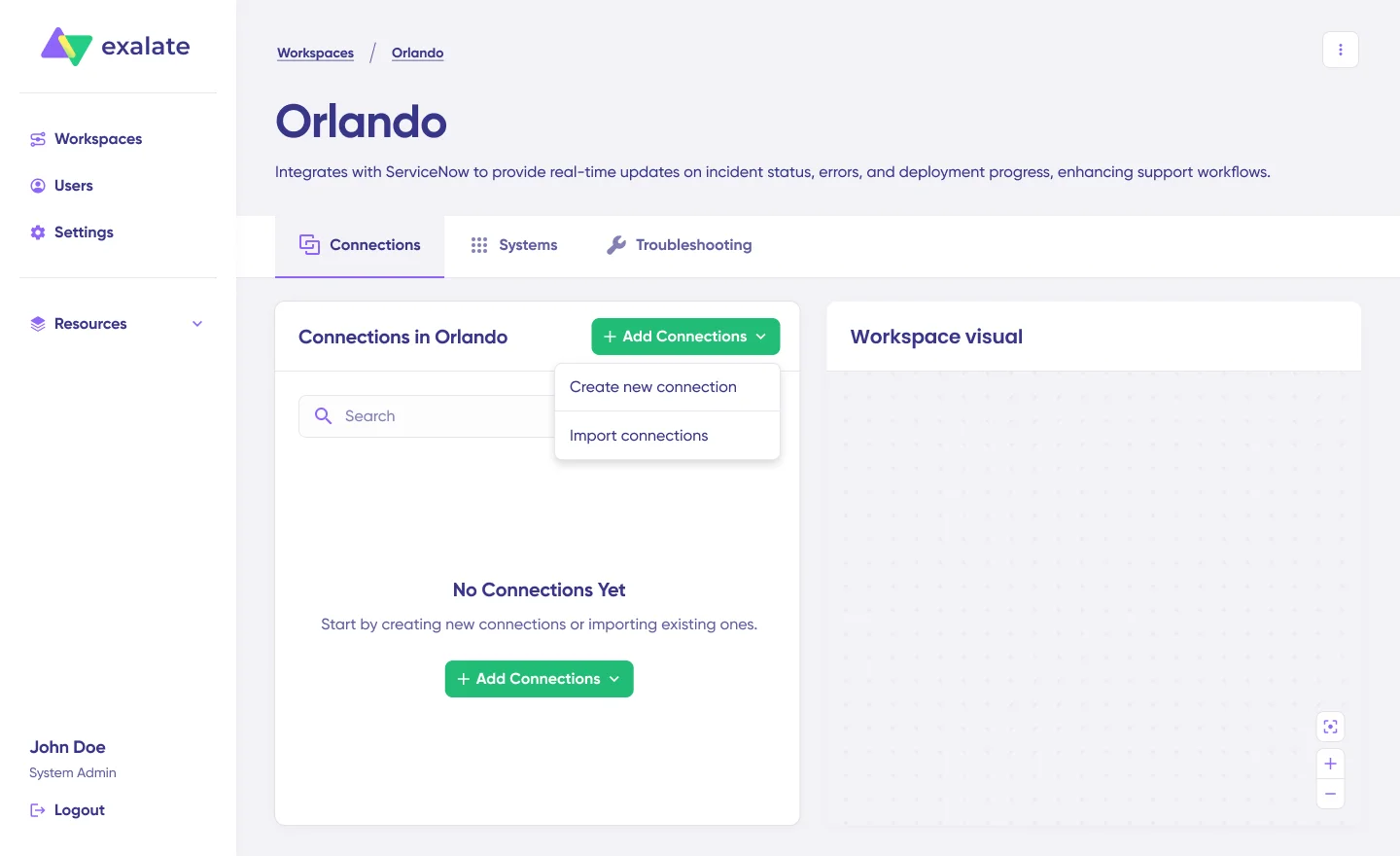
When the process is complete, select “Continue to configuration” and choose the Jira project and Azure DevOps project you want to use for synchronization.
Then click “Build & continue”.

Step 3: Configure the Sync Rules
After creating your connection, you have two configuration options: “Quick Sync” and “Edit & Test”.
Quick Sync: Publish & Quick Sync
This option allows you to sync one item between Jira and Azure DevOps to verify that your connection works properly. Under the “Item sync monitor,” enter the work item key in Jira or the work item ID in Azure DevOps. Click “Sync Now” to test.
Edit & Test: Open Draft Editor
To customize your sync configuration, click “Create a new version” or select “Open latest draft”. This ensures you do not accidentally modify the existing configuration. Changes in the draft are saved automatically.
Click the “Edit” button to open the editor and modify the sync rules.
Sync rules are based on Groovy scripts. With these scripts, you can add custom data logic and mapping, along with conditional flows, allowing you to adapt for any complex or advanced use cases and workflows.
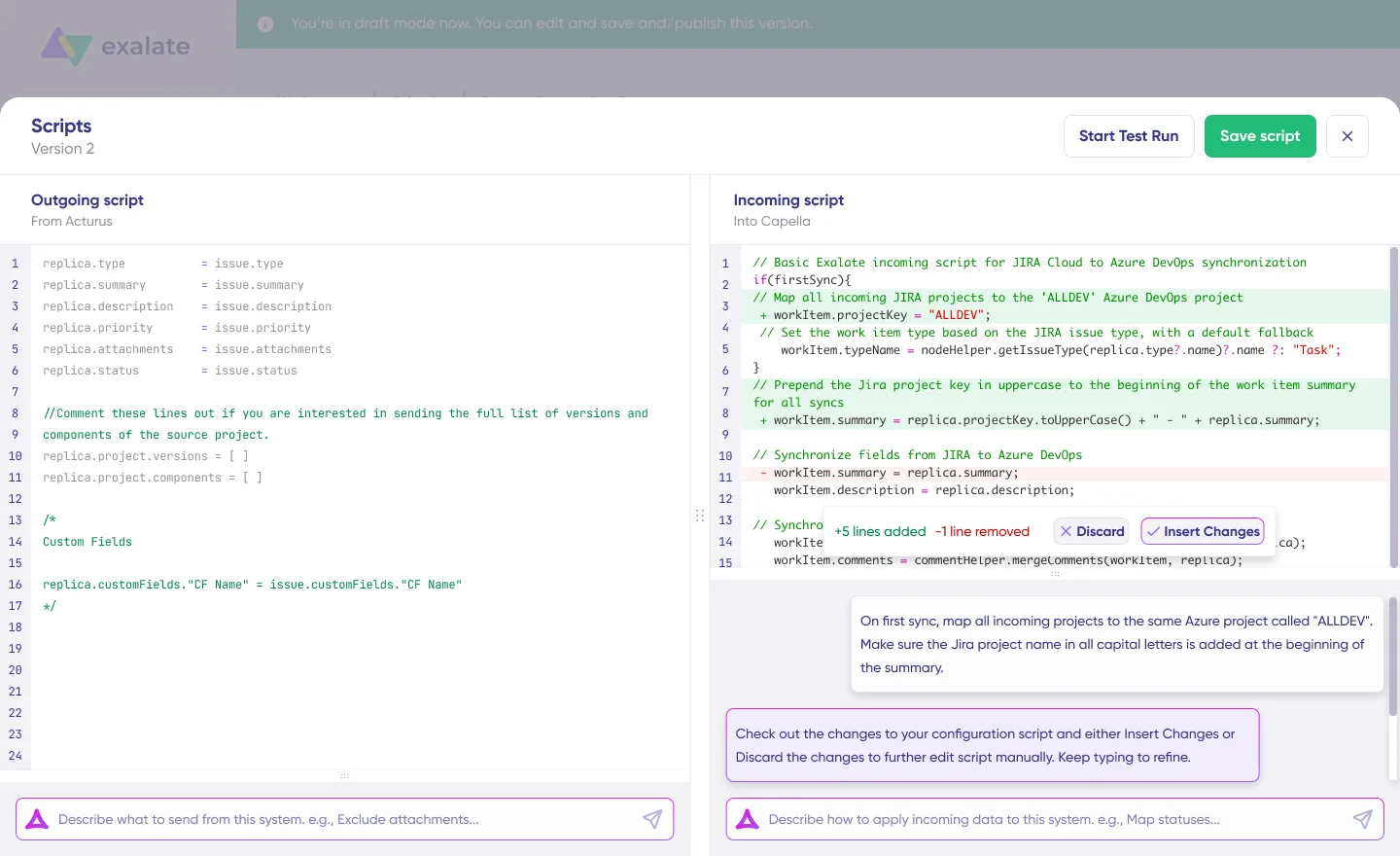
The scripts are divided into incoming and outgoing scripts:
- Outgoing script: Defines what information leaves your system. If the sync direction is from Jira to Azure DevOps, the outgoing script holds the values passed from Jira.
- Incoming script: Defines how incoming data is mapped in the destination system.
Replica works like a message payload and holds the actual data passed between the synced entities. It exists in JSON format.
To stop something from syncing (for instance, attachments from Jira to Azure DevOps), simply remove that script line from the outgoing Jira script.
AI-Assisted Configuration with Aida
To save time and simplify the scripting process, you can use Aida to generate sync scripts.
- For Outgoing scripts: Describe what data should leave your system. For example, “Exclude attachments” or “Only sync high-priority work items.”
- For Incoming scripts: Describe how incoming data should be applied. For example, “Map statuses between Jira and Azure DevOps” or “Set a default assignee if the user cannot be found.”
Once Aida finishes drafting your script, review the suggested changes. Green highlights indicate new lines that will be added, while red highlights show lines that will be removed. You can choose to “Insert” or “Discard” Aida’s suggestions.
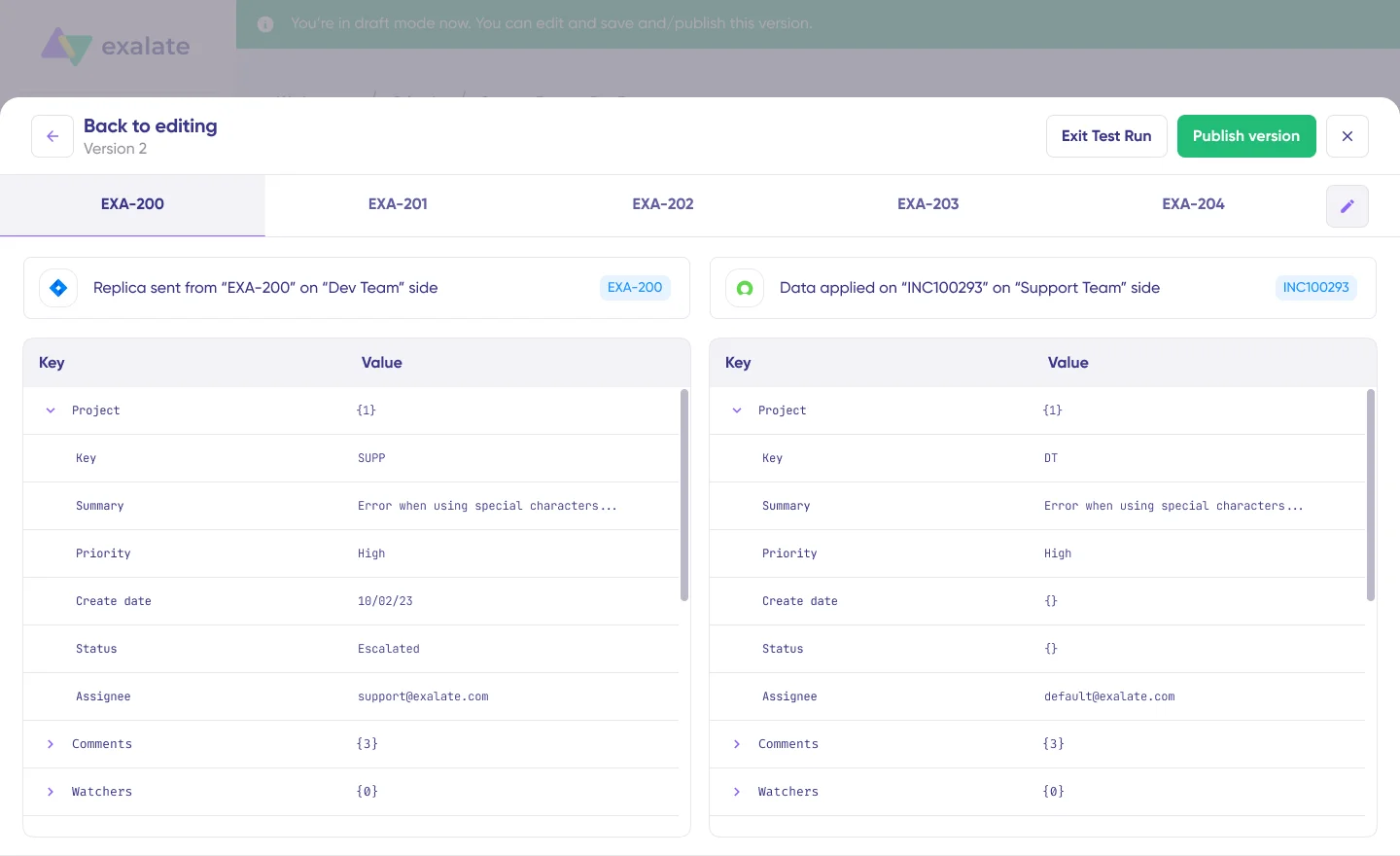
Once your sync scripts are ready, you can test them using the “Start Test Run” option. Select the items you want to test, click “Start Test Run”, and review how the sync configuration will be applied.
Preview the replica and verify that the field mappings look correct. If needed, go back, adjust the scripts, and test again. Deploy only when you are confident everything works correctly.
Once everything matches your needs, click “Publish Version” to apply the updated configuration to your live synchronization.
Step 4: Set Automatic Sync Triggers
Once you have set your sync rules, it is time to specify the conditions that start your sync automatically.
Click the “+ Add Trigger” button. These triggers are platform-specific:
- For Jira: Use Jira Query Language (JQL) to specify conditions for work items. For example: project = DEV AND priority in (High, Highest).
- For Azure DevOps: Use Work Item Query Language (WIQL) to set triggers. For example, filter by area path, work item type, or state.
Activate the trigger, leave some notes to identify it later, and publish your changes.
Step 5: Deploy and Start Syncing
That is it. Your synchronization will start automatically based on the sync rules and triggers you have set. You can always edit your connection under the “Connections” tab if your requirements change.
If errors occur, Aida helps you troubleshoot by offering context-aware suggestions directly in the “Troubleshooting” tab of your workspace. Hover over an error, click the Aida icon, and review the AI-generated diagnosis along with a proposed fix.
Advanced Jira Azure DevOps Integration Use Cases
You can sync any items available via REST APIs using Exalate’s scripting engine. Here are some possibilities:
- Custom field mapping: Map and sync custom fields between Jira and Azure DevOps. For instance, set the Jira work item priority as a picklist field in Azure DevOps, or sync Azure DevOps area paths to a custom Jira field.
- Work item links and relations: Sync and maintain work item links, relations, and subtask mappings between Jira and Azure DevOps. Parent-child hierarchies can be preserved across both systems.
- Status mapping: Map statuses between Jira workflows and Azure DevOps board columns. For example, Jira “In Progress” can map to Azure DevOps “Active”, and “Done” to “Closed”.
- Multi-instance connections: Connect multiple Jira instances to a single Azure DevOps organization, or set up a hub-and-spoke architecture across departments. All connections are managed through the unified console with network visualization.
- Third-party plugin data: Sync data from any third-party plugin or any field available via REST API.
- Sprint and iteration sync: Keep sprint boundaries and iteration paths aligned across both platforms so planning stays consistent.
Get Started with Your Jira Azure DevOps Integration
If implemented correctly, integrating Jira and Azure DevOps will enhance collaboration and help you bridge the gap between these tools.
Right from syncing basic work item fields to orchestrating complex workflows, Exalate’s flexibility suits any team’s needs.
Start your free 30-day trial and explore what is possible.