



Product development is growing more complex. With this, it is more important than ever to know how to properly configure your workstation. Engineers must balance performance vs cost, local vs cloud-based workstations, and traditional CAD vs AI-augmented workflows. In this guide, we will explore how to enable high-performance workflows like large assembly design, simulation, generative design, and increasingly, AI-driven engineering using PTC Creo. Additionally, we will cover how SPK and Associates helps organizations optimize both physical and cloud-based environments with solutions like vCAD.


What GPUs Should You Use for Creo Workflows?
For most Creo users, GPU selection is critical, especially for graphics performance, simulation, and rendering.
Recommended GPU Strategy
- Primary recommendation: NVIDIA RTX-class GPUs
- Why NVIDIA?
- Required for Creo Simulation Live and Render Studio
- CUDA support enables GPU acceleration
- Broad certification across OEMs like Dell, HP, and Lenovo
Minimum vs Ideal
- Minimum: 4GB VRAM (basic workflows)
- Recommended: 8GB+ VRAM (rendering, simulation)
- Ideal: RTX A-series or equivalent for advanced workflows
What to Avoid
- Consumer-grade GPUs for enterprise environments
- Non-certified configurations (PTC only supports tested stacks)
What CPUs Are Best for Creo?
Creo remains primarily a single-threaded performance-driven application, especially for modeling and regeneration.
Best CPU Characteristics
- High clock speed (most important)
- Strong single-core performance
- Moderate core count
Recommended CPUs
- Intel Core i7/i9 or Xeon (high-frequency models)
- AMD Ryzen or Threadripper (for hybrid workloads)

What Workflows Benefit from High Core Counts?
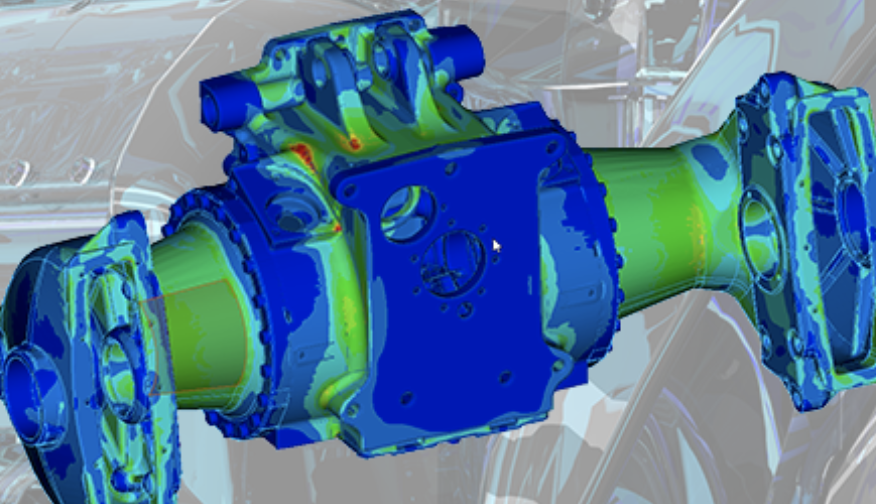
While modeling is single-threaded, several workflows benefit from more cores:
- Simulation and analysis
- Generative design
- Rendering (Creo Render Studio)
- Large data processing and batch jobs
Simulation, Generative Design, Rendering, and Large Data Processing
If your team uses these workflows, consider:
- 16–32 core CPUs
- Hybrid configurations (high clock + high core count)
How Much RAM Do Creo Users Need?
RAM is one of the most underestimated performance factors. If you work with large assemblies, it is often the biggest performance bottleneck.
Baseline Recommendation
- Minimum: 32GB
- Recommended: 64GB+ for large assemblies
- Enterprise scale: 128GB+
Virtual Memory Best Practice
PTC recommends:
- Virtual memory = 3x assembly size
- Example: 128GB initial, 256GB max for large assemblies
Best Options for Working Remotely or From Home
Remote work is now standard, and traditional workstations are not always enough.
Option 1: VPN + Local Workstation
- Limited performance
- High latency for large assemblies
Option 2: Cloud Workstations (Recommended)
SPK’s vCAD platform provides a modern solution:
- GPU-enabled cloud workstations
- Accessible from anywhere
- Scalable based on workload
vCAD Configurations
Image Sizes:
- Small: Single app, minimal storage
- Medium: 2–3 apps with moderate storage
- Large: Enterprise environments with multiple apps
Compute Options:
- 4 CPU / 16GB RAM → Entry-level CAD
- 8 CPU / 32GB RAM → Complex assemblies
- 16 CPU / 64GB RAM → Simulation + large datasets
- 32 CPU / 128GB RAM → High-performance engineering
Key Benefits:
- No hardware refresh cycles
- Instant scalability
- Centralized data and security
Are There New Features That Impact Hardware Selection?
Yes. Recent Creo updates introduce changes that directly impact performance:
1. Read-Only Regeneration Optimization
- Default now set to skip regenerating read-only models
- Improves performance in large assemblies
2. Enhanced Toolkit APIs
- Better handling of modifiable vs read-only models
- Reduces unnecessary processing
Performance Tweaks in the Latest Creo Releases
Configuration Improvements
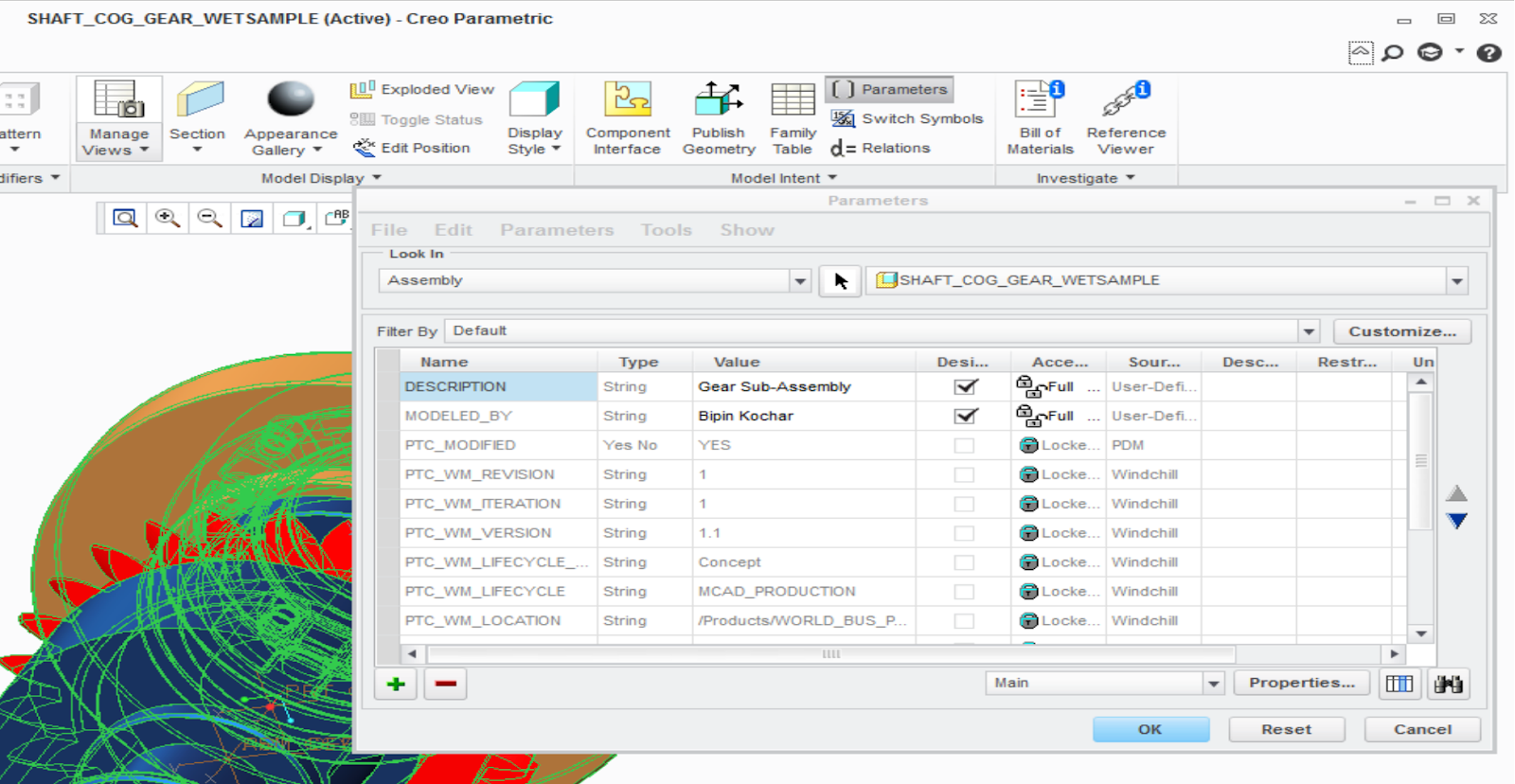
- regenerate_read_only_objects = no (new default)
- Reduces unnecessary compute cycles
Distributed Computing
- Enable distributed computing using dcadsetup
- Offloads processing across systems
Graphics Optimization
- Use certified OpenGL 4.0+ GPUs
- Keep drivers aligned with PTC-certified configurations
Creo and Java 21: What You Need to Know
Creo now supports Java 21. Standard Creo users may not need Java installed at all, however, it improves:
- Security
- Compatibility with Windchill
- Stability for integrations
When Java Matters
Required only if using:
- J-Link
- Java Object Toolkit
- ThingWorx integrations
- Windchill connectors

Will AI in Creo Impact Workstation Requirements?
Yes and no.
What’s Changing
Creo is incorporating AI into:
- Generative design
- Design optimization
- Predictive workflows
Impact on Hardware
- More reliance on GPU acceleration
- Increased need for compute scalability
- Larger datasets driving higher RAM usage
What This Means
- Traditional workstations may struggle over time
- Cloud platforms like vCAD become more attractive
- AI will not replace hardware needs, but it will increase demand for flexible, scalable compute.
Operating System Considerations
- Windows 11 (latest versions) is recommended
- Windows 10 support is ending (Oct 2025)
- Windows Server is supported mainly for batch processing
Always align with PTC-supported OS versions to ensure compatibility and security.
Building the Ideal Creo Workstation
For Most Users
- CPU: High-frequency Intel or AMD
- GPU: NVIDIA RTX (8GB+ VRAM)
- RAM: 32–64GB
- Storage: SSD
For Advanced Users
- CPU: High clock + multi-core (16+)
- GPU: RTX A-series
- RAM: 64–128GB
- Consider: vCAD for scalability

How SPK and Associates Can Help
At SPK and Associates, we help engineering teams design optimal workstation strategies and ensure alignment with PTC-certified configurations. We can also help with Creo optimization or migration to a cloud solution like vCAD. Whether you are upgrading hardware or moving to the cloud, we ensure your Creo environment is built for performance, scalability, and future AI-driven workflows.
Configuring a Workstation in Creo
Configuring a workstation for Creo in 2026 is about more than specs. It is about aligning your infrastructure with how engineering work is evolving. The right setup can dramatically improve productivity, time-to-market, and engineering quality. Plus, with solutions like SPK vCAD, you don’t have to choose between performance and flexibility. If you have any questions about implementing Creo or utilizing vCAD, reach out to our experts.