

Key Takeaways
- Integrating Jira Service Management with Slack brings incident response directly into the channels where teams already work, reducing context switching and speeding up triage.
- Teams can route alerts based on priority and manage incidents directly from Slack using interactive actions and /jsmops commands for acknowledgement, assignment, escalation, notes, and more.
- Two-way syncing keeps Slack conversations and JSM tickets aligned, helping responders maintain context without duplicating updates across tools.
- A well-designed ChatOps setup requires more than just connecting the tools. Alert routing, escalation policies, knowledge base quality, and governance all play a role in keeping workflows efficient and scalable.
Modern IT teams rely heavily on Slack for real-time collaboration and Jira Service Management for incident resolution. When alerts, on-call rotations, and service desk tickets live strictly inside JSM, context switching quickly becomes a bottleneck. Teams lose time toggling between tools, with response times stretching and critical alerts risk getting buried in email inboxes. Integrating Jira Service Management with Slack brings full ChatOps capabilities directly into your team’s daily communication hub. Whether you are managing high-priority incident triage, routine IT requests, or on-call schedules, connecting JSM and Slack ensures your team can resolve issues faster without leaving their active chat channels. Here is your complete guide on how to set up a Slack-JSM integration, why it matters for your support workflows, and a reference list of slash commands to supercharge your ChatOps.


Why Connect JSM and Slack? Key Benefits for Support & Ops Teams
Connecting Jira Service Management to Slack transforms passive alert channels into interactive incident response rooms.
Unified Incident Triage and Accelerated MTTR
Responders can acknowledge, snooze, escalate, or close alerts directly using interactive Slack buttons or slash commands. This eliminates login delays during critical P1/P2 incidents.
Intelligent Notification Routing
Avoid notification fatigue by setting up granular filters. Route high-priority (P1/P2) alerts to an urgent on-call response channel while funneling routine informational alerts to team-specific channels.
Frictionless Employee Support with the Atlassian Virtual Agent
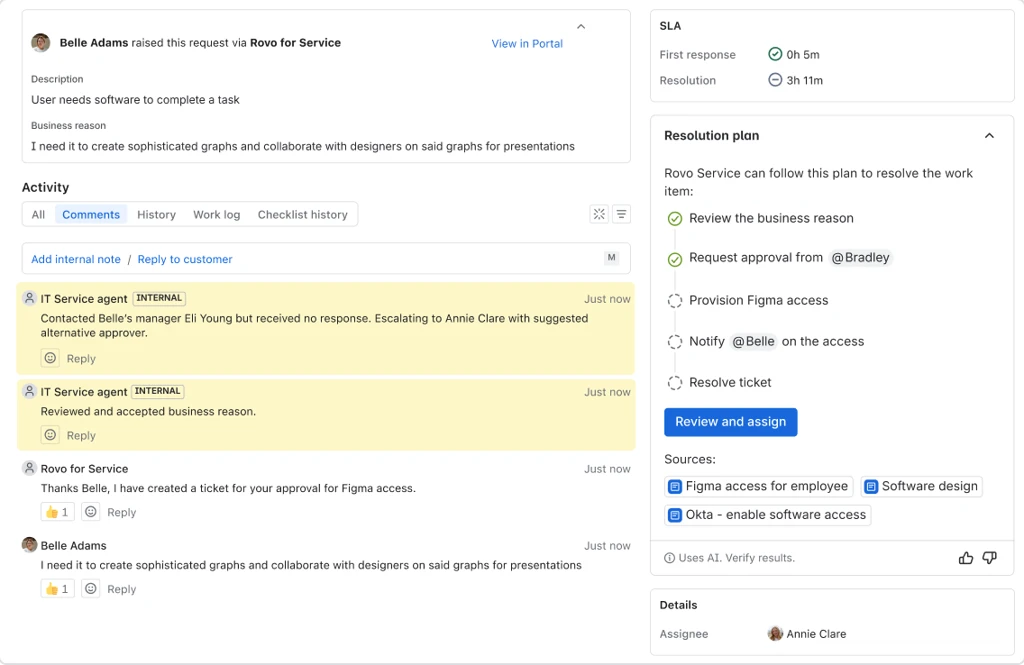
- Self-Service Deflection: When employees ask questions in Slack, JSM’s AI Virtual Agent queries your Confluence knowledge base first. If an answer exists, it resolves the question instantly.
- Effortless Ticket Creation: If human intervention is needed, the Virtual Agent automatically opens a JSM ticket, or teammates can convert any Slack message into a ticket using emoji reactions (like 🎫 or ⚡).
- Two-Way Thread Syncing: Updates made in Slack threads sync back to the JSM ticket, and agent comments in JSM reflect immediately in Slack.
Simplified On-Call & Shift Management
Check who is currently on duty, swap shifts, or mute individual notifications directly within Slack, keeping engineering teams agile during off-hours.
JSM + Slack ChatOps Flow
How to Connect Jira Service Management and Slack
If you are looking to integrate Slack and JSM, you need the following prerequisites:
- You must have Jira Admin or Team Admin permissions in Jira Service Management.
- A connected Slack workspace with appropriate permissions to install the JSM ChatOps app.
- Pre-created Slack channels (public or private) or direct message threads designated for alert routing.
Step 1: Connect Your Slack Workspace to Jira
- Log in to your Atlassian account and navigate to Jira Service Management.
- Connect your Slack workspace to your Jira site following Atlassian’s workspace connection prompts.
- In your Slack workspace, verify the connection by running /connect in any channel.
Step 2: Add the Slack Integration in JSM
Option A: Team-Level Integration (Available on Free, Standard, Premium, and Enterprise Plans)
Use this option to receive notifications specifically for alerts where your team is designated as a responder.
- Navigate to your Team profile page in Jira.
- Scroll to the Operations section and click Go to operations.
- Select Integrations from the sidebar and click Add integration.
- Select Slack from the integration directory.
Option B: Site-Level Integration (Available on Premium and Enterprise Plans)
Use this option to capture site-wide alerts that do not yet have an assigned responder team.
- Go to Settings (gear icon) > Apps > Operations (or next to Operations in the sidebar, select More actions … > General configuration).
- Click Integrations > Add integration.
- Select Slack from the list.
Step 3: Configure Integration Settings & Alert Filtering
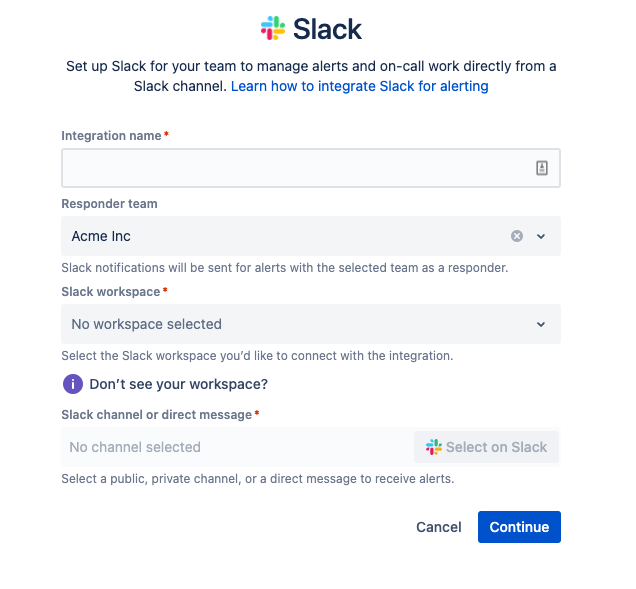
- Name the Integration: Give it a clear, descriptive label (e.g., DevOps-P1-Alerts or IT-Support-Triage).
- Assign Responder Team & Workspace: Select the associated team and target Slack workspace.
- Choose Slack Channel or DM: Click Select on Slack, choose your destination channel, and click Allow to confirm permissions.
- Tune Action Buttons & Fields: Configure whether interactive action buttons appear on messages and choose which alert fields display.
- Set Up Filters: Define custom filters so the channel only triggers on relevant alerts (e.g., filter by Priority = P1/P2 or specific tags).
- Click Continue. Your integration is now ON by default.
Note on Resetting: Slack workspaces and channels cannot be directly swapped inside an existing integration. If you need to change destination channels later, open the integration, select More actions … > Reset, and re-run the configuration.
Jira Service Management Slack Command Reference
Once connected, your team can execute on-call and alert management actions directly in Slack using /jsmops slash commands:
/jsmops unack alert <1 2...>
/jsmops close alert <1 2...>
/jsmops snooze alert <1> for < m/h/d >
/jsmops ack all alerts
/jsmops close all alerts
/jsmops add tag < tag1, tag2...> to alert <1>
/jsmops add responder < email > to alert <1 2...>
/jsmops assign alert <1 2...> to < email >
/jsmops update priority of alert <1> to < P1-P5 >
/jsmops escalate alert <1 2...> to < policy >
/jsmops alert <1>
/jsmops all alerts
/jsmops all alerts of < team >
/jsmops assign oncall to < user / me > for < team >
/jsmops mute notifications to < me / email >
/jsmops unmute notifications to < me / email >
/jsmops create timeline
/jsmops select site for commands
Unacknowledges specified alerts.
Closes specified alerts.Snoozes alert notifications for a specified duration (e.g., 30m, 2h).
Batch-acknowledges up to 1,000 open alerts.
Batch-closes up to 1,000 open alerts.
Attaches descriptive tags to an alert.
Adds a responder team member to the alert.
Assigns alert ownership to a specific user.
Updates alert severity level (P1 through P5).
Escalates the alert according to a defined escalation policy.
Displays full details for a single alert.
Lists all active alerts accessible to you.
Filters and displays all open alerts for a specific team.
Reassigns on-call coverage for a team or schedule.
Mutes alert and on-call notifications for a set duration.
Restores alert and on-call notifications.
Uses AI to generate a chronological incident timeline in Slack.
Switches context when multiple JSM sites are connected.
How SPK and Associates Can Help Implement Your ChatOps Workflow
While connecting Slack and Jira Service Management can be done in a few clicks, designing an efficient, scalable ChatOps architecture requires thoughtful planning. Without proper routing, teams often face alert fatigue, misconfigured escalation policies, and inconsistent ticket hygiene. SPK and Associates helps enterprise IT, engineering, and product teams tailor and optimize their Atlassian ITSM toolchains:
- ChatOps & Workflow Architecture: We can design customized alert routing, notification filters, and multi-channel triage structures to ensure high-priority incidents get immediate visibility without spamming general channels.
- Atlassian Virtual Agent & KB Optimization: Our team can configure the JSM AI Virtual Agent and align your Confluence knowledge base to maximize ticket deflection and speed up resolution times.
- On-Call & Escalation Policy Design: We can help configure resilient on-call rotations, multi-tier escalation paths, and automated incident response policies tailored to distributed teams.
- Governance, Compliance & Toolchain Integration: For organizations in regulated sectors (such as medical device or government cloud), SPK ensures that Slack-to-JSM integrations adhere to strict data security, audit trail, and compliance standards.
Connecting JSM and Slack for Improved Support
Integrating Jira Service Management with Slack bridges the gap between where teams communicate and where work gets done. By empowering employees to request help natively in Slack and equipping incident responders with comprehensive /jsmops commands, your organization can dramatically improve responsiveness and reduce operational overhead. If you are ready to optimize your service management workflows, reach out to SPK to aid in this implementation.